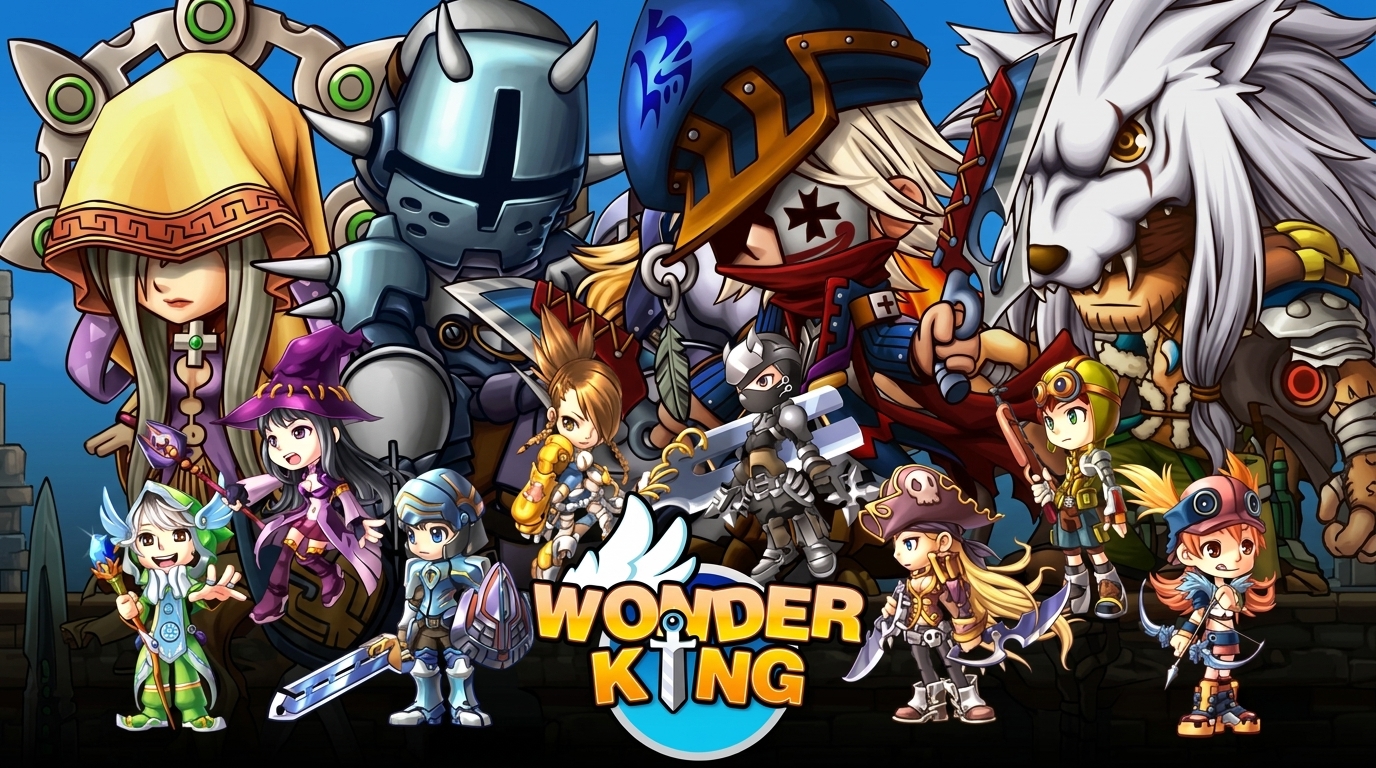
To start playing, download both the Base Client and the Updated Launcher below.
Contains the original game assets: music, maps, monsters, sound effects, and all classic 2D animations.
Contains the modern launcher executable with native HD Widescreen 16:9 support, skill fixes, and server connection files.
Click both buttons above to download the Base Client and the Launcher & Patch to your PC.
Right-click the downloaded Base Client archive (WinRAR or 7-Zip) and select "Extract to WonderClassic".
We suggest extracting to a path like C:\Games\WonderClassic or your Desktop.
Open the Launcher & Patch archive and drag/extract all files directly inside the Client folder you created in Step 2.
Inside the game folder, right-click WonderLauncher.exe and select "Run as Administrator".
Inside the Launcher, register your account credentials, click PLAY, and enjoy the game!
| Hardware | Minimum | Recommended |
|---|---|---|
| Operating System | Windows 7 / 8 / 10 | Windows 10 / 11 |
| Processor (CPU) | Intel Dual Core 2.0 GHz | Intel Core i3 or higher |
| RAM | 2 GB RAM | 4 GB RAM or more |
| Storage | 3 GB available | 5 GB available (SSD) |
Because our Launcher and client are custom-modified to support native HD Widescreen and connect to our custom emulator without legacy protection, Windows Defender may flag it as an unrecognized file. The files are 100% clean and virus-free. If the blue SmartScreen prompt appears, simply click "More info" > "Run anyway".